
My co-founder Sameer wrote about the nightmare of Snapchat exports a few days ago. Wrong dates, separated overlays, browser tabs dying overnight. All real problems. But while building SnapSavior, I discovered something worse. Something that Snapchat never tells you about. Some of your memories are already broken on Snapchat's servers. And their export tool? It just pretends they don't exist.
I'm Johnny, the CTO of SnapSavior. I spend my days digging through code, parsing data formats, and figuring out why things break. What I found in Snapchat's export system genuinely shocked me. Let me walk you through it.
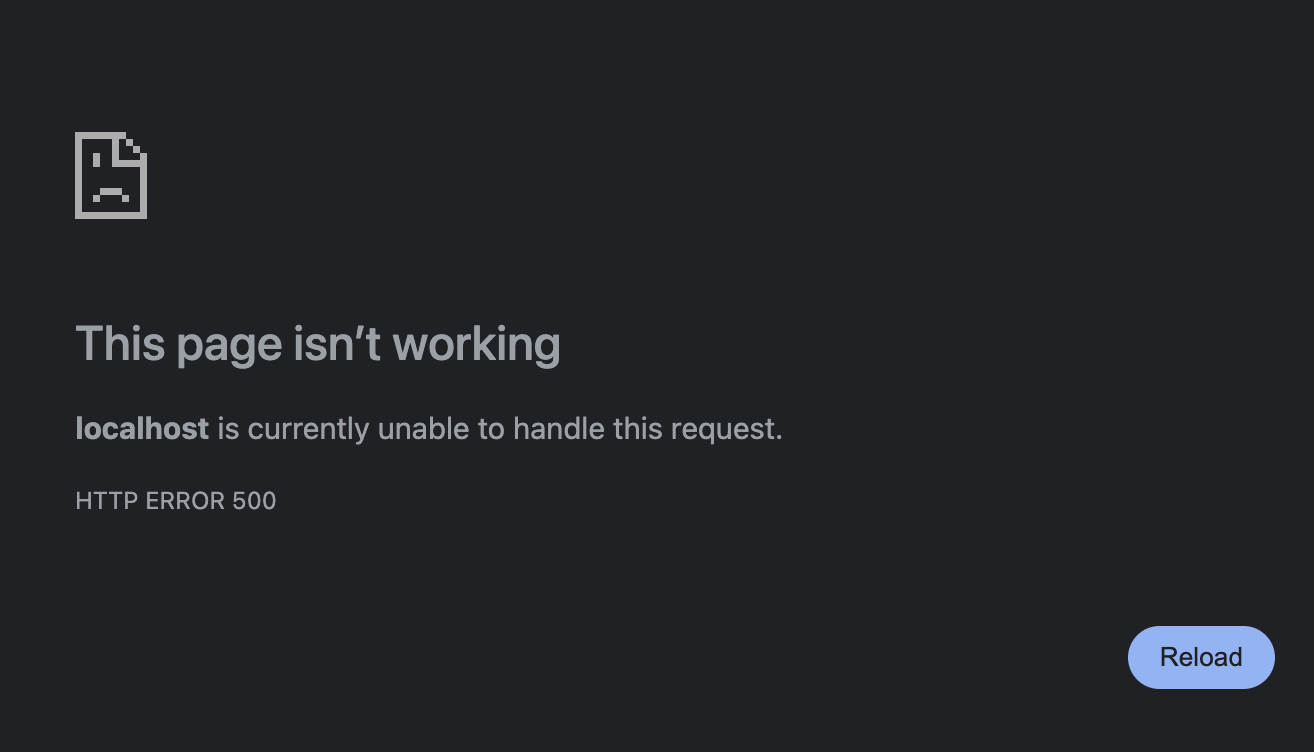
The Problem: HTTP 500 Errors (a.k.a. "The Server Just Gave Up")
When you request your Snapchat data export, they send you a file called memories_history.html. This file contains links to all your memories stored on Snapchat's servers. When you click "Download," your browser asks Snapchat's server: "Hey, can I have this photo?" The server is supposed to respond with the file.
But here's the thing: sometimes the server just... doesn't. Instead, it responds with something called an HTTP 500 error.
What's an HTTP 500 Error?
Think of the internet like a restaurant. You (the customer) place an order (a request). The kitchen (the server) makes your food and brings it out (the response). An HTTP 500 error is the kitchen saying: "Something went wrong back here, and we have no idea what. Sorry, no food for you."
It's a catch-all error code that basically means "the server broke and we're not going to tell you why." It could be a database issue. It could be corrupted data. It could be a bug in their code. From the outside, we have no way of knowing. All we know is: your memory is not coming through.
The Real Problem: Failures That Look Like Success
Here's where it gets infuriating. Open that memories_history.html file in your browser and hit "Download All." Watch the counter go up. 47/3000... 48/3000... 49/3000...
What happens when the download tool hits a broken link? I dug through their actual JavaScript code to find out.
To their credit, there is some error handling. When a download fails, the code briefly shows "Download failed." in a small info bar and resets that specific link back to a clickable state. That's... something, I guess.
But here's the critical problem: the progress counter increments regardless of whether the download succeeded or failed. Look at this code from their export file:
} else if (xhttp.status >= 400) {
    // Shows "Download failed." briefly
    document.getElementById("mem-info-bar").innerText = "Download failed.";
}

if (isDownloadingAll) {
    completedDownloads++;  // Counts failures as completions!
    updateProgressBar();
}
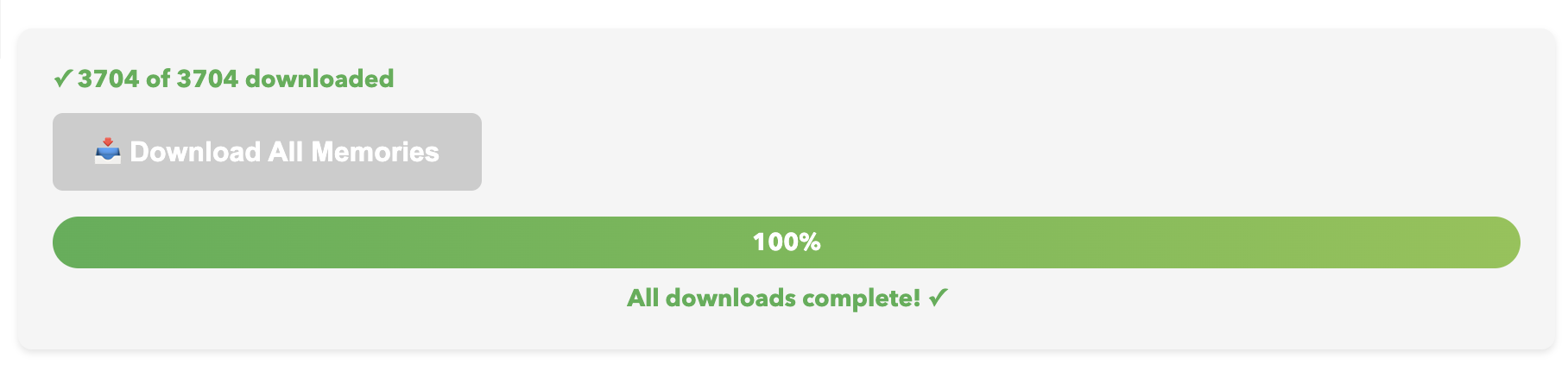
That completedDownloads++ runs whether the file downloaded successfully or not. So if you have 3,000 memories and 50 of them fail with server errors, you'll still see:
"All downloads complete! ✓"
The "Download failed." message? It flashes for about 2 seconds before the next download starts and overwrites it. If you're not actively watching the screen (and who watches a progress bar for hours?), you'll never see it.
What's Missing: A Failure Summary
Here's what a responsible download tool would do: at the end of the batch, show you a summary. "Downloaded 2,950 of 3,000 memories. 50 files failed. Click here to see which ones."
Snapchat's tool doesn't do this. There's no list of failures. No log file. No way to know which specific memories couldn't be retrieved. The individual links do get reset to their clickable state, but good luck finding them among thousands of rows.
Why This Is Such a Big Deal
Most people export their Snapchat data exactly once. They hit "Download All," see "All downloads complete!" and assume everything worked. They delete the app (or their Memories) and move on with their lives.
Months or years later, they go looking for that one specific photo... and it doesn't exist. It was never downloaded. The tool said it was "complete" but it wasn't.
By that point, your original data on Snapchat's servers is probably gone too. You missed your one window to actually save it.
How We Discovered This
When we were building SnapSavior, we wrote our own download system. Instead of relying on the browser's janky "Download All" button, we process the export file server-side and download each memory programmatically.
Our code does something simple that Snapchat's doesn't: it checks if the download actually worked.
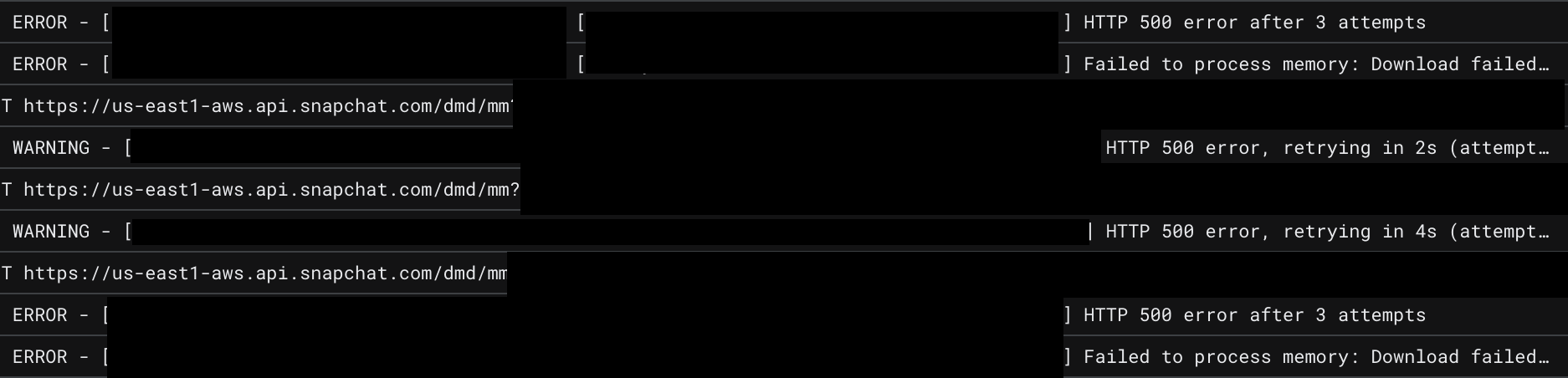
For every single link in your export, we make the request and look at the response code. If we get a 200 (that means "success" in HTTP-speak), great! We save the file. If we get anything else, like a 500 or a 404 or a timeout, we log it.
And that's when we started seeing the 500 errors.
Redacted system information (The DoJ shoulda hired me for the Epstein files)
What We Built: The Failed Memories Report
We couldn't fix Snapchat's servers. If a file returns a 500 error, there's nothing we can do to force it to give up the data. But what we could do is tell you about it.
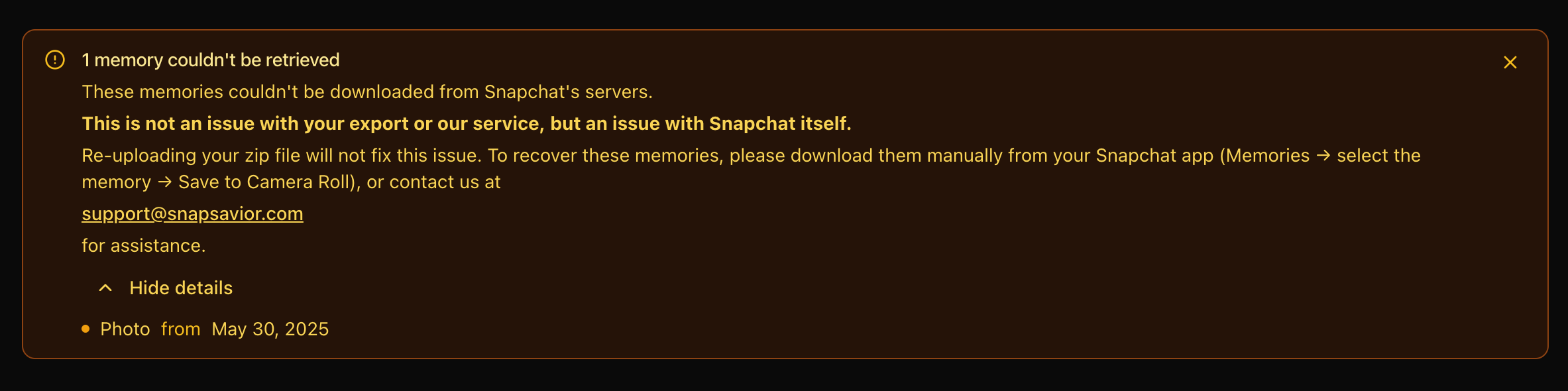
When SnapSavior processes your export, we generate a Failed Memories Report. For every memory that couldn't be downloaded, we give you:
- The exact date and time the memory was created
- The media type (photo or video)
- The error code we received
This is crucial information. With the date and time, you can open the Snapchat app, scroll to that exact moment in your Memories, and manually save that specific memory before it's too late.
Why We Show Date and Time (Not Just "3 files failed")
If we just told you "Hey, 3 of your memories couldn't be downloaded," that would be useless. You have thousands of memories. Which 3? When were they from? Are they important or just random selfies?
By giving you the timestamp, you can make informed decisions. You might see that one failure was from December 25th, 2019 and think, "Oh, that's Christmas with my family. I need to save that manually." Another might be from a random Tuesday in March. Maybe you care about that one, maybe you don't. The point is: you get to decide.
The Technical Deep Dive (For the Curious)
If you're interested in the technical side, here's what's actually happening under the hood.
How Snapchat's Export Links Work
Each link in memories_history.html is a pre-signed URL pointing to Snapchat's cloud storage. Think of it like a temporary access pass. The URL contains encoded credentials that let you download that specific file for a limited time.
The structure looks something like this:
https://sc-memories.snapchat.com/...
?signature=abc123...
&expires=1703289600
When you hit that URL, Snapchat's server validates the signature, checks if it's expired, and then fetches the file from their internal storage system.
Where the 500 Errors Come From
The 500 error happens somewhere in that fetch process. Our best guess (and it is just a guess, because Snapchat doesn't publish their internal architecture) is that some memories get corrupted or orphaned in their storage system. The link is valid, the signature checks out, but when the server goes to actually retrieve the file... it's not there. Or it's corrupted. Or the database entry is broken. Or something else entirely. Who knows
Rather than return a helpful error like "file not found," the server just crashes and returns a generic 500.
Why Snapchat's Download Tool Misleads You
Their memories_history.html page does have error detection. When a request returns a 400+ status code, the code catches it and shows a brief "Download failed." message. They even reset the link so you can retry it manually. That's genuinely better than nothing.
The problem is the user experience design. The error message disappears in 2 seconds. The progress counter doesn't distinguish between success and failure. There's no failure log or summary. The completion message is misleading.
I genuinely don't know if this is intentional or just an oversight. Either way, the result is the same: users think their export worked when it didn't. They delete their data. And then the memories are gone forever.
What You Can Do Right Now
If you're planning to export your Snapchat memories, here's my advice:
Option 1: Use SnapSavior
This is the easiest path. Upload your export, and we'll handle the downloads server-side. You'll get all your working memories properly dated and merged, plus a report of any that failed so you can manually recover them.
Option 2: Export and Cross-Check Manually
If you want to do it yourself, here's the process: First, count the total number of memories shown inmemories_history.html. Then, after downloading, count the files you actually received. If the numbers don't match, some of your memories failed. The problem? You have no way of knowing which ones. You'd have to manually compare timestamps in the HTML against your downloaded files. For thousands of memories, this is basically impossible.
Option 3: Don't Delete Anything Yet
If you've already exported but haven't deleted your Snapchat data, don't delete it yet. Run your export through SnapSavior first to check for failures. Any memories that failed can still be manually saved from the app before you wipe everything.
Final Thoughts
Look, I get it. Running a service at Snapchat's scale is hard. Things break. Servers fail. Data gets corrupted. That's reality.
But the minimum you owe your users is transparency. If a memory can't be downloaded, tell them. Show a warning. Generate a list of failures at the end. Give people a chance to recover their data before it's gone forever.
Silently skipping broken links isn't just bad UX. It's data loss disguised as success. And for a company whose entire product is built on preserving memories, that's pretty unforgivable.
We built SnapSavior because we believe your memories are worth more than a silent failure. If Snapchat won't tell you what's broken, we will.
Don't let your memories disappear silently
Upload your Snapchat export to SnapSavior. We'll download everything we can and tell you exactly what failed.
Check Your Export for Broken Links