
You finally got your Snapchat memories downloaded. Congrats. Now you're staring at a folder with 4,000 files that look like DCIM_001.jpg, DCIM_002.mp4, and so on. No dates. No organization. No way to find that one video from your Tokyo trip in 2019 without clicking through every. single. file.
I'm Johnny from SnapSavior. We built our tool to fix the broken dates and missing overlays in Snapchat exports. But after shipping those features we realized something: fixing the files is only half the battle. The other half is actually organizing them before you dump them into your photo library.
So we built a full gallery with map views, filters and custom export folders. Let me show you why this actually matters.
The "Other Tools" Problem
Most Snapchat export tools (the Python scripts on GitHub, random sketchy websites) follow the same pattern:
- Upload your zip
- Wait forever
- Download a new zip
- Done
No preview. No organization. No way to know what you're actually exporting until it's already on your computer. If you want to separate your vacation photos from your random selfies? Too bad. Export everything and sort it yourself later.
That's fine if you have 50 memories. But if you have 4,000? You're gonna spend an entire weekend dragging files into folders.
And here's another problem nobody talks about: local tools require downloading everything to your device first. If you have 50GB of Snapchat memories (which is more common than you'd think), you need 50GB of free space just to process them. Got a 128GB phone that's already 90% full? Too bad. You literally cannot use those tools until you free up space or buy an external drive.
How SnapSavior Does It Different
When you upload your Snapchat data to SnapSavior we don't just process it and spit out a zip. We give you a full gallery where you can:
- Browse every memory with actual thumbnails (not file icons)
- See the real capture dates restored from the JSON metadata
- Filter by photos vs videos
- Sort by date, file size or name
- Search for specific dates or time periods
- View your memories on an interactive map (if they have location data)
- Select exactly what you want to export
- Name your export folder whatever you want
Let me walk through some real scenarios where this actually saves you hours.
Scenario 1: "I Want All My Japan Trip Photos in One Folder"
You went to Japan in 2019. You took 200 photos and videos over two weeks. Now those memories are scattered across your 4,000-file export with no way to find them.
With other tools:
Export everything. Open each file. Check the date. Drag it to a folder. Repeat 4,000 times. Cry.
With SnapSavior:
- Open the Map View
- Zoom into Japan
- Click the "Select Area" button
- Draw a rectangle around the country
- Boom: every memory taken in Japan is now selected
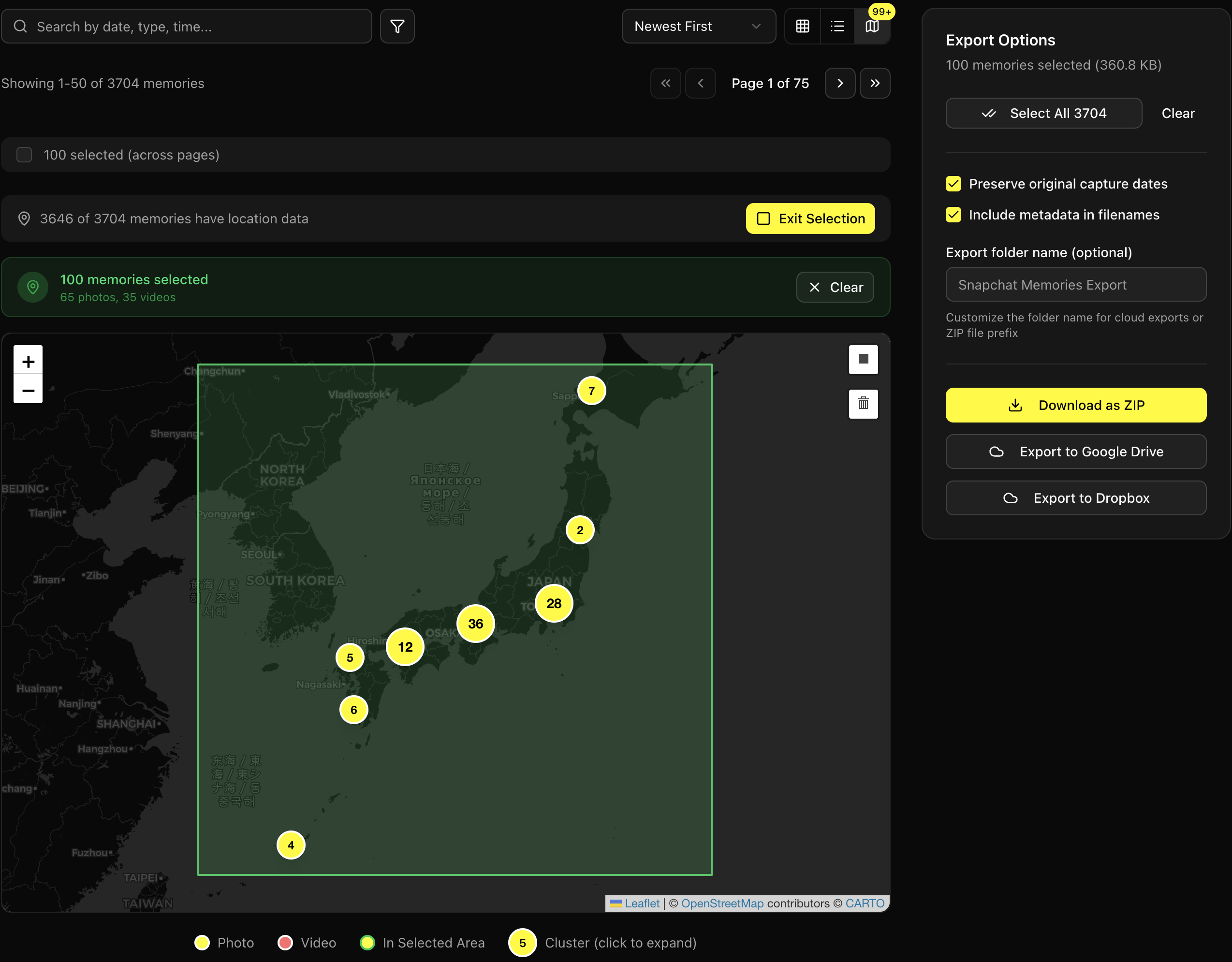
- Type "Japan 2019" in the custom folder name field
- Hit export
- Download a zip that contains ONLY your Japan trip, organized in a folder called "Japan 2019"
No scrolling. No clicking through files. Just draw a box on a map and you're done.
Scenario 2: "My Videos Are Huge and I Want Them on Google Drive"
Here's a problem nobody talks about: your Snapchat videos are probably massive. Those 60-second snaps from concerts? Some of them are 100MB+. Your phone doesn't have space for all of that.
You want to:
- Keep small photos on your phone
- Store the massive videos in the cloud
With other tools:
Export everything. Sort by file size manually. Drag videos to one folder and photos to another. Upload the videos to Google Drive separately.
With SnapSavior:
- Click the Filter button
- Select "Videos only"
- Now your gallery shows ONLY videos
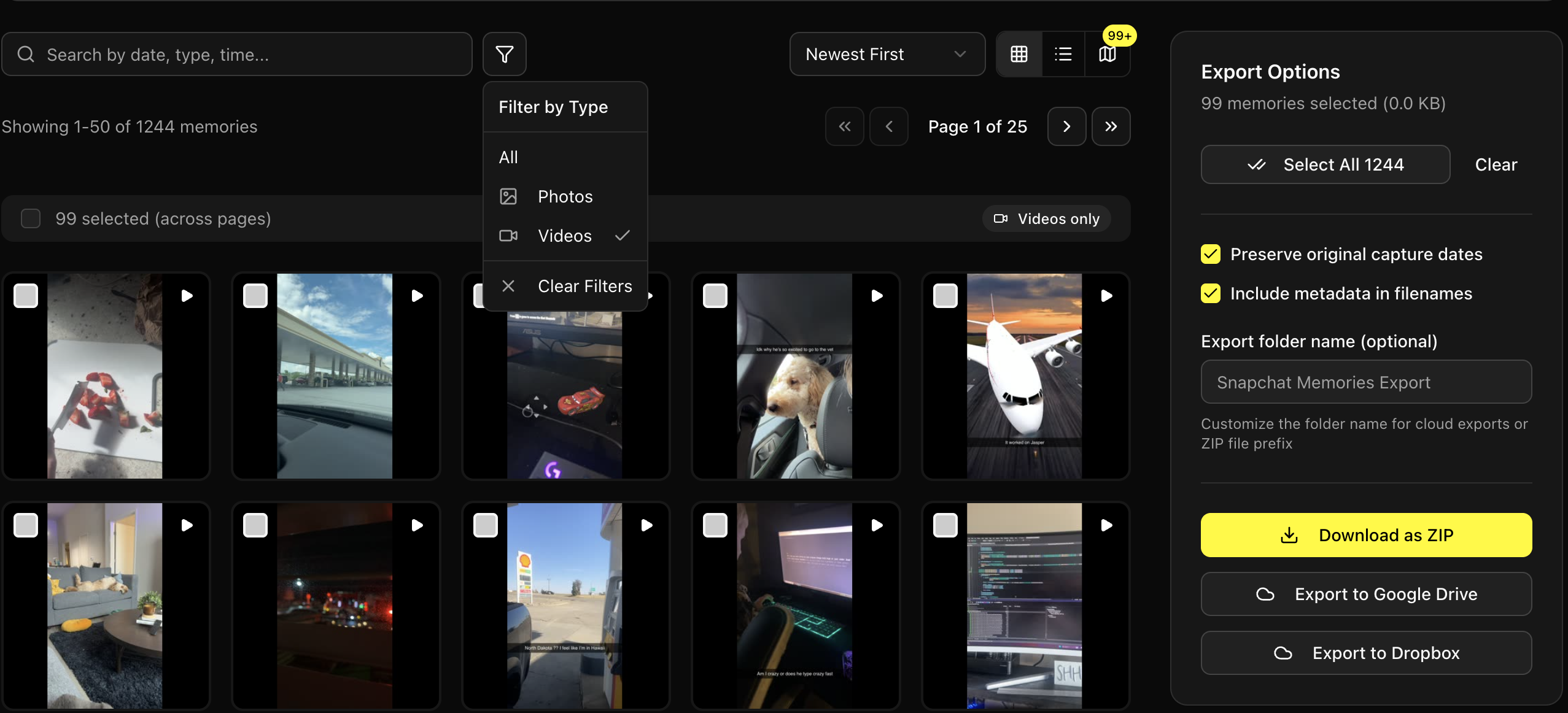
- Sort by "Largest first" to see the big ones
- Select all (or just the ones over 50MB)
- Type "Large Videos" as your folder name
- Click "Export to Google Drive"
- Done. Your videos go straight to Drive without ever touching your phone's storage.
Then flip the filter to "Photos only" and download those as a zip to your computer. Your phone stays light and your videos live in the cloud where they belong.
Scenario 3: "I Only Care About 2022 and 2023"
Maybe you don't need a decade of memories. Maybe you just want the last two years because everything before that is already in your camera roll.
With other tools:
Export everything. Delete 80% of it.
With SnapSavior:
- Sort by "Newest first"
- Scroll to where 2022 starts
- Select all the memories from 2022-2023
- Export just those
Or use the search bar: type "2022" and instantly see only memories from that year.

Scenario 4: "I Want to Make a Highlight Reel"
You're making a video montage of your best moments. You need to find specific clips: that fireworks video from July 4th, the sunset on your road trip, your friend's birthday surprise.
With other tools:
Good luck.
With SnapSavior:
- Filter to videos only
- Browse in grid view to see thumbnails
- Click on any video to preview it full-screen
- Check the box to select the ones you want
- Export just those clips with a custom folder name like "Highlight Reel Clips"
You can even use the map to find location-specific clips. Looking for that beach sunset? Zoom to the coast and select everything there.
Scenario 5: "I Want to Split My Export Across Multiple Destinations"
Maybe your workflow looks like this:
- Photos from trips → Dedicated external drive
- Random selfies → Delete most, keep a few
- Anything with your dog → Send to your partner
- Videos → Google Drive (too big for phone)
With other tools:
You're making four separate exports from scratch.
With SnapSavior:
- Filter and select your trip photos
- Export to zip with folder name "Trip Photos"
- Reset selection
- Filter videos only
- Export to Google Drive with folder name "Snap Videos"
- Reset selection
- Search by date to find dog photos
- Export to zip with folder name "Dog Pics"
Each export gets its own folder name. Each one goes exactly where you want it. No confusion about which zip is which.
Scenario 6: "I Don't Have 50GB Free on My Device"
This is the one that stops people before they even start. You have 8 years of Snapchat memories. That's easily 30-50GB of photos and videos. Your phone has 12GB free. Your laptop has 20GB free.
With local tools (Python scripts, desktop apps):
You're stuck. These tools run on your device which means all those files have to download to your device first. No space = no export. Your options are:
- Delete a bunch of apps and files to make room
- Buy an external drive
- Export in tiny batches over weeks
- Give up
With SnapSavior:
Everything processes in the cloud. Your memories never need to touch your device until you're ready to download them.
- Upload your Snapchat export zip (this is small, just links and metadata)
- We download and process everything on our servers
- Browse your entire library in the gallery without using any local storage
- Pick only the memories you actually want to keep
- Download just those, or send them straight to Google Drive/Dropbox
Got 50GB of memories but only want 5GB of your favorites? Cool. You never have to download the other 45GB. Your device stays lean while you decide what's worth keeping.
This is especially huge if you're planning to export directly to cloud storage. Your 50GB of videos can go straight from our servers to your Google Drive without ever passing through your phone. Zero local storage used.
Why Custom Folder Names Actually Matter
This might seem like a small feature but it's a game changer.
When you export from SnapSavior your zip file contains a folder with your custom name. So instead of extracting a folder called snapchat_export_12345/, you get:
Japan 2019/Large Videos/Best of 2023/
When you're importing 5 different exports into your photo library or cloud storage those names mean you can find stuff later. No more guessing which "export_12345" folder has your graduation photos.
The Time Math
Let's be real about how long manual organization takes.
Say you have 3,000 memories and you want to:
- Pull out 200 photos from a specific trip
- Separate videos from photos
- Export videos to cloud, photos to computer
Manual method:
- Scrolling through 3,000 files: 2 hours minimum
- Opening files to check content: 30+ hours
- Sorting into folders: Another 2 hours
- Total: Easily 30+ hours over a weekend
SnapSavior method:
- Upload and process: 10-20 minutes
- Use map to select trip photos: 2 minutes
- Filter and export videos to cloud: 3 minutes
- Filter and export photos to computer: 3 minutes
- Total: Under 30 minutes
The gallery isn't just a "nice to have." It's the difference between a weekend project and a lunch break task.
Quick Feature Recap
| Feature | Other Tools | SnapSavior |
|---|---|---|
| Preview before export | No | Yes - full gallery |
| Filter photos/videos | No | Yes |
| Sort by date/size | No | Yes |
| Search by date | No | Yes |
| Map view | No | Yes |
| Select area on map | No | Yes |
| Custom folder names | No | Yes |
| Export to cloud | Rarely | Google Drive, Dropbox |
| Choose what to export | No | Yes |
| Cloud processing (no local storage needed) | No - requires full download | Yes |
But Wait I Just Want Everything
That's fine too. If you don't care about organization:
- Upload your zip
- Click "Select All"
- Click Export
- Download one big zip with everything fixed
We're not forcing you to organize. We're giving you the option to organize. Which is more than any other tool offers.
Final Thoughts
We didn't build SnapSavior to be a "dump files and forget" tool. We built it to be the last step before your memories are truly yours again: organized, named and ready to go wherever you need them.
Ready to actually organize your memories?
Stop spending weekends sorting files. Let SnapSavior do the heavy lifting.
Try SnapSavior Now