
So, you finally decided to leave Snapchat. Maybe you ran out of storage, or maybe you just got tired of "renting" your own life history for $3/month. You did the responsible thing: you went to Settings > My Data, requested an export, and waited 24 hours for the email. You opened the zip file, expecting to see a nice, clean folder of 5,000 photos ready to drop into your iPhone Camera Roll. Instead, you found The Nightmare.
If you are currently staring at a file called memories_history.html, or if you just uploaded your photos to a server and saw them all dated "Today," you are not crazy. You didn't do it wrong. Snapchat designed it this way. Here is exactly what is broken, why it happens, and the two ways (Hard vs. Easy) to fix it.
1. The "Download All" Trap
The first thing you probably noticed is that your "Export" didn't actually give you the files. It gave you a file called memories_history.html which is just a list of links. I learned this the hard way. I opened the file, saw a "Download All" button, and thought, "Great, I'll let this run overnight." I had 4,114 memories. I watched the counter go: 3/4114 downloaded... 4/4114 downloaded... and turned off my screen, dreaming of a clean hard drive.
The Reality Check:
I woke up the next morning, and the counter said 4114/4114. Success? Nope. My downloads folder was empty. It had silently failed all night because the browser put the tab to sleep.
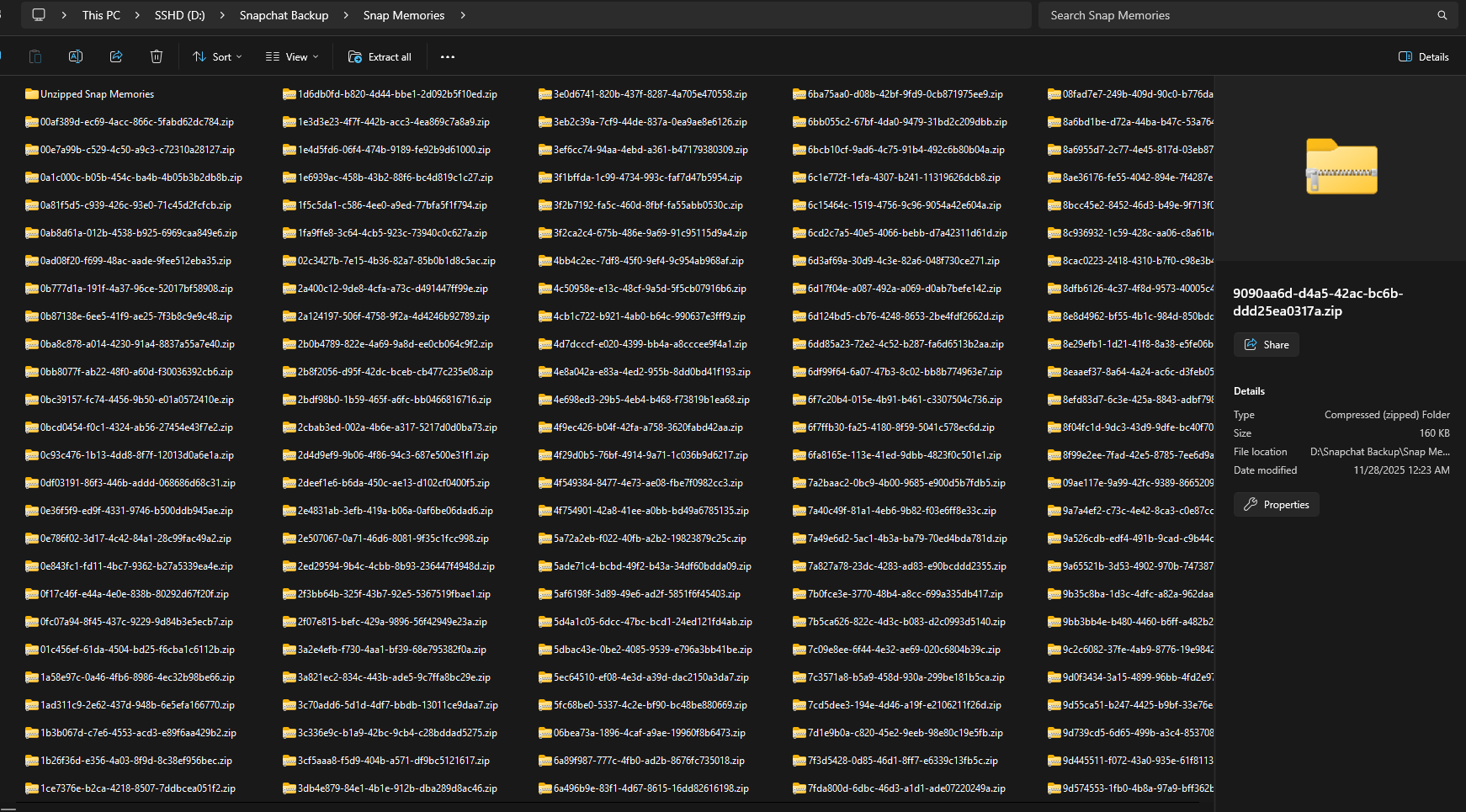
I switched browsers (from Firefox to Edge) and tried again. This time, I was hit with a new hell: a popup every 3 seconds asking "Allow this site to download multiple files?" I literally had to set up an auto-clicker just to hit "Allow" every few seconds for hours. If you don't know how to code an auto-clicker, you are essentially stuck clicking a button 4,000 times.
2. The "Overlay" Disaster (Why your text is missing)
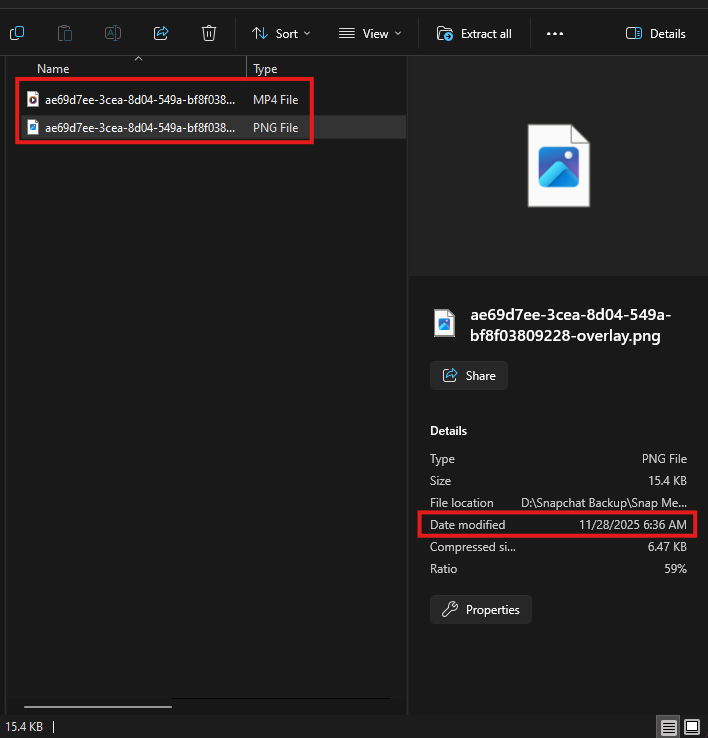
Once you finally get the files on your computer, you'll notice something weird. Let's say you have a funny Snap of your dog with the caption "Good boy!" When you find that file in your export, you won't see the caption. You will see: (1) File A: A raw video of your dog with no text, and (2) File B: A separate .PNG file that is just the floating text "Good Boy!" on a transparent background.


The Technical Reason:
Snapchat stores your memories in layers to save data. When you export, they don't "bake" them back together. Instead, they hand you the ingredients and say "Good luck cooking this." If you drag these files into Apple Photos or Google Photos, you get a mess: a photo, and then next to it, a weird black square with floating text. The context is gone.

3. The "Time Travel" Glitch (Metadata)
This is the one that ruins your camera roll. I made the mistake of uploading my raw export directly to my photo server (Immich). I opened the app and panicked: A decade of photos were all dated "Today." My high school graduation? Today. My trip to Japan in 2019? Today.
The Technical Reason:
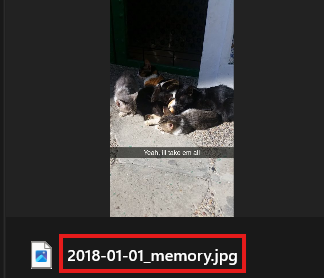
Snapchat strips the "Date Taken" (EXIF) data from the image file itself. The date is actually hidden inside a separate .JSON file. Your computer doesn't know how to read that JSON file, so it just defaults to the day you downloaded it. To fix this, you need a tool that reads the JSON code, finds the timestamp (e.g., 2018-10-12 14:00:00), and digitally stamps it back onto the image.
Option 1: The "Hard" Way (Free & Open Source)
If you are a developer, you can fix this for free. I believe in transparency, so here is exactly how to do it. There are several open-source scripts on GitHub (like Snapchat-Memories-Downloader) that can merge these files.
The Prerequisites:
First, you need to install Python and add it to your system PATH. Then you need FFmpeg, a command-line video processing library to merge overlays. Finally, you clone the repository and run commands like python main.py --ffmpeg-path C:/ffmpeg/bin.
My Experience:
I consider myself "techy" (I run my own home servers). Even for me, this was a nightmare. The first script I tried was broken. The second one required dependencies that conflicted with my system. My co-founder is a former developer at a Fortune 100 company, and even he spent 4 nights fighting with these scripts to get a clean export.
Option 2: The "Easy" Way (SnapSavior)
We realized that expecting normal people to install Python just to save their own photos is ridiculous. So, we took that complex code, fixed the bugs, and wrapped it in a simple drag-and-drop website called SnapSavior.
How it works:
You drag your zip file into the box. We automatically merge the overlays (text + photo), stamp the correct "Date Taken" back onto the file, and give you a clean zip that you can drop directly into Apple Photos, Google Photos, or a hard drive.
The Economic Argument:
The Federal Minimum Wage is $7.25/hour. Trying to fix this manually or debugging Python scripts will take you at least 3-5 hours - and that's not even counting the 8-12 hours you'd spend babysitting browser downloads, clicking "Allow" popups, and re-starting failed transfers. We charge $7 (one-time). If you value your time (and your sanity) at more than $0.33/hour, this tool literally pays for itself.
Is it Safe? (The Security Question)
I am a privacy nut. I host my own cloud because I don't trust big tech. So I built SnapSavior to be the tool I would trust.
No Human Access: The entire process is automated. We cannot see your photos, and neither can anyone else. Encryption: Your data is encrypted in transit (TLS) and at rest (AES-256). Auto-Deletion: Once your file is processed and you download it, our system automatically wipes it from the server. We don't want your data clogging up our drives any more than you do. Google Cloud Security: We run on the same infrastructure (GCP) that powers Google's own services.
Ready to stop renting your memories?
Fix your broken Snapchat export in minutes, not hours.
Fix Your Snapchat Export Now